

 Hazel Ryan
How to list software on Capterra: the short answer
To list software on Capterra, check that your product meets the listing requirements, click Get Your Product Listed on Capterra's vendor page and submit your product details through the G2 Digital Markets sign-up. The team checks category fit, writes or approves the profile and publishes it, and a basic listing costs nothing.
The free part is stated plainly by Software Advice, one of the three sites in the same network. Software Advice's vendor listing FAQ says products that fit the site can request a free listing, that submissions are reviewed for category fit in the order received, and that vetting, writing and publishing can take over six weeks.
Who runs the sites changed this year. G2's announcement of the Capterra acquisition, dated 29 January 2026, says G2 agreed to acquire Capterra, Software Advice and GetApp from Gartner, and Capterra's vendor page now reads "Capterra, powered by G2 Digital Markets".
A new listing with no reviews gives buyers little reason to click, which is why reviews are the next step. The RelikReview Capterra review service runs that step for software teams with their own customers through Capterra's review link, and our RelikReview review services cover the other sites your buyers read.
Capterra listing requirements: who can be listed
The Capterra listing requirements decide whether a product gets a profile at all. Capterra, GetApp and Software Advice each publish profile guidelines for vendors, and the rules below come from GetApp's profile guidelines for vendors, last updated on 4 May 2026, which Software Advice publishes in the same form.
A product is eligible when it is:
- B2B or B2C. Sold to businesses or to consumers.
- Packaged. A pre-built, off-the-shelf product.
- A category fit. It fits an existing category, at the site's sole discretion.
- Publicly available. Buyers can start a trial, see a demo or request more information.
Beta products can qualify if they have a working website, an offer on sale to the public and at least one review collected within the first calendar year on the site. Marketplaces, database websites, personal apps, product clones, custom-made software and products whose only call to action is a waitlist are turned away, and resellers can list a product only with the vendor's express authorization.

Steps to add product to Capterra
The steps to add product to Capterra are short, and most of the waiting happens after you submit. Work through them in this order:
- Search first. The sites may build a listing from public information, so check whether your product already has one.
- Open the sign-up. Get Your Product Listed on Capterra's vendor page opens a G2 sign-up that asks you to verify yourself through LinkedIn or a business email.
- Prepare your details. Have the product name, description, screenshots, website link and pricing ready.
- Wait for review. The team checks category fit and writes or approves the copy.
- Check the live profile. Log in to the vendor account and check every field.
One point to plan for: you do not fully control the text. GetApp's guidelines say the site either creates a listing from public information or works with the vendor, and the final copy is subject to the discretion of its content team.
So send facts the team can check against your website, such as the features on your product pages and the plans on your pricing page. The guidelines say profiles also draw on public information about the product, so keeping your own site current matters as much as the submission.
What to fill in on your Capterra listing
A complete listing gives buyers enough to compare you with other products in the category. These are the fields the guidelines and the vendor FAQ cover:
| Field | What the guidelines ask |
|---|---|
| Product name | Matches your website, with no suffix such as Inc or LLC |
| Description | Unique, a true product overview, never copied |
| Screenshots | At least one strongly encouraged, showing the real interface |
| Videos | In English, about the product, on YouTube, Vimeo or Wistia |
| Categories | One or more existing categories the product fits |
| Website link | A working URL that points to your own website |
| Pricing | Required on Software Advice, shown as $ to $$$$$ |
The description causes the most rework. The guidelines ban first-person wording such as "we" or "our", superlatives such as "best", calls to action, contact details and HTML, so write a neutral summary a buyer could compare with others in the category.
Screenshots must show the software's real user interface, with no stock images or marketing jargon, so pick screens a buyer will actually use. Software Advice also never shows exact prices, turning your pricing into a range of one to five dollar signs.

The Capterra vendor portal and your account
The Capterra vendor portal is the account you use once the listing is live. Capterra's vendor page says the vendor account lets you manage listings, monitor performance, and track reviews and badges, and its log-in now opens G2 Digital Markets' app.
Two features matter most for reviews. Capterra's community guidelines for vendors, last updated on 4 May 2026, say replies to reviews must go through the site's own tools, such as the Vendor Portal reply feature, and that any incentive must use the incentive link provided in the Vendor Portal.
Profile changes follow their own route, because Software Advice's FAQ asks vendors to email update requests to [email protected]. Keep one person in charge of the account, so replies and updates do not stall.
Want reviews on your new listing?
See how our review campaigns work, from the written plan to the last review, all inside Capterra's rules.
How your listing relates to GetApp and Software Advice
Capterra, GetApp and Software Advice are separate sites with one vendor operation behind them. All three send their "Get listed" buttons to the same G2 sign-up, and Software Advice's FAQ says G2 Digital Markets comprises the three sites.
Reviews travel between them too. Capterra's community guidelines say reviews may be published on GetApp, Software Advice and other affiliated or partner websites, and vendors must say so in their review requests.
The vendor pages do not say whether one submission always creates a profile on all three sites, so search each site for your product name after launch. For the wider case for appearing where buyers compare products, see our guide on why are online reviews important.
How to list software on Capterra for free or with pay-per-click
A free listing is the base, and the paid programs add visibility on top of it. A sensible order is to start free, fill the profile and collect a first round of reviews before you spend anything.
G2 Digital Markets' Engaged Buyers program is the pay-per-click option. It promotes your profile to buyers across Capterra, GetApp and Software Advice, and you only pay when an interested buyer clicks through to your website. The page lists flexible bidding, self-serve tools and conversion tracking, but publishes no prices or minimums.
The page also sets the order: complete your profile and collect customer reviews, then run pay-per-click campaigns. G2's acquisition announcement adds pay-per-lead offerings, and Capterra's vendor page mentions a lead generation program, with no prices on either.

First steps to collect reviews on your new listing
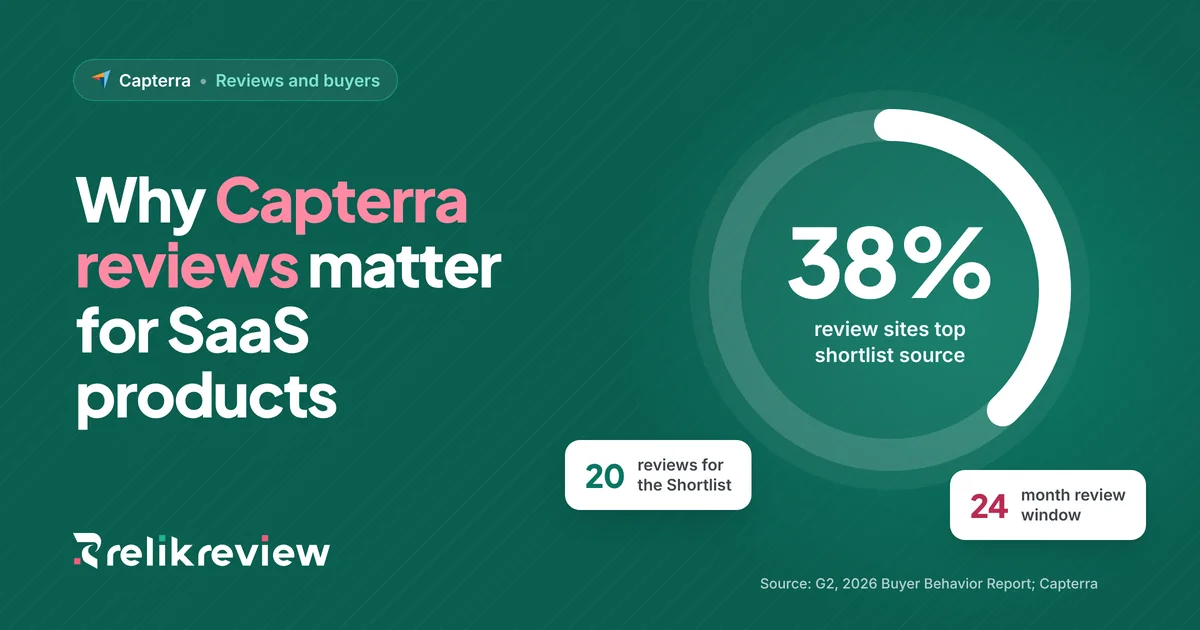
Reviews are what turn a listing into a shortlist candidate. In G2's 2026 Buyer Behavior Report, a survey of more than 1,000 B2B software buyers published in July 2026, review sites (38%) were the top source shaping which vendors make a buyer's shortlist.
Capterra's community guidelines set the rules for asking. Vendors must ask a broad cross-section of their user base without targeting by expected sentiment, must not coach what customers write, and must say that honest feedback is required. Our guide to capterra review guidelines covers moderation and incentives in detail.
A first round that stays inside those rules looks like this:
- Pick a fixed point. Ask every customer at day 30, day 90 or the account anniversary.
- Use Capterra's links. Share the review link, and use the Vendor Portal incentive link for any gift card.
- Keep the wording neutral. Ask for an honest review and say nothing about the rating.
- Reply to every review. Use the Vendor Portal reply feature for critical and positive reviews alike.
Start with the people who use the product every week, because Capterra only accepts reviews written by the actual user. For what those first reviews do once they are live, read why capterra reviews matter.
 Capterra review service
Fill your new listing with reviews through RelikReview
RelikReview runs Capterra review campaigns for software teams with their own customers through Capterra's review link. We plan who to ask, write each request and reminder, and agree the plan and price in writing first.
- Never paidReviewers choose their own rating and words.
- Fixed pointsEveryone at the same stage gets the same request.
- Inside the rulesEvery request follows Capterra's community guidelines.
Listing on Capterra, then the next step
Knowing how to list software on Capterra comes down to three moves. Confirm the product meets the listing requirements, submit it through the G2 Digital Markets sign-up with a clean description and real screenshots, and use the vendor account to reply to reviews and keep the profile current.
The basic listing costs nothing, and pay-per-click can wait until the profile has reviews worth reading. If you want help planning that first round of reviews, talk to the RelikReview team about where to start.
FAQs about listing software on Capterra
Is it free to list software on Capterra?
Yes, a basic listing is free. Software Advice's vendor listing FAQ, from the same G2 Digital Markets network as Capterra, says products that fit the site can request a free listing. Paid programs are optional, and the Engaged Buyers pay-per-click program charges only when a buyer clicks through to your website.
How long does it take to get listed on Capterra?
Getting listed can take several weeks, and Capterra's own vendor page gives no fixed time. Software Advice, part of the same network, says vetting, writing and publishing a profile can take over six weeks, with submissions reviewed in the order received. Prepare your description and screenshots before you submit.
Can any software be listed on Capterra?
No, only products that meet the listing requirements are accepted. The network's profile guidelines ask for a packaged B2B or B2C product that fits an existing category and offers a public trial, demo or request for information. Marketplaces, database websites, bespoke software, personal apps and waitlist-only products are not eligible.
Do you need reviews before listing on Capterra?
No, a standard listing does not need reviews to go live. The exception is a beta product, which needs at least one review collected within the first calendar year on the site under the profile guidelines. Reviews still matter, because buyers use review sites to decide which vendors make their shortlist.
Does a Capterra listing also appear on GetApp and Software Advice?
Capterra, GetApp and Software Advice share one vendor sign-up under G2 Digital Markets, and reviews collected through Capterra may be published on GetApp and Software Advice. The vendor pages do not promise that every product gets a profile on all three sites, so search each site for your product name after launch.